Wednesday, 24 July 2019

Maximo Automation Script setting values while Initializing

There are times where we need to set the value when the object is invoked rather that setting the values during the save method. This can be achieved in Maximo automation scripts.

Step 1: Create an Object Launch Point with JavaScript.
Step 2: Make sure to check the Initialize? check box is checked. And all other check box are unchecked.
Step 3: Below is the sample code for setting the "Inspection Required" and "Adding Spare Parts" check box to always be checked when the item is created.

importPackage(Packages.psdi.mbo);
if(mbo.getString("ITEMSETID")=="ITEMSET1"){
    if(mbo.toBeAdded()==true){
        mbo.setValue("INSPECTIONREQUIRED", 1);
        mbo.setValue("SPAREPARTAUTOADD", 1);
    }
}

Wednesday, 24 April 2019

Launch in Context in Maximo

In Maximo we came across a requirement, where we need to navigate from one maximo application to maximo  another application(without using the detail menu). For example, we need to navigate from asset to work order through click on button and navigation should occur based on the Asset current value. So when the control navigates from asset to Work order, all the work order should be displayed based on the asset. Below is the approach we have followed using Launch in Context. The example we have taken is navigation from Location to Work Order application based on the Current location.


1) Go to --> System Configuration --> Platform Configuration --> Launch in Context application and Create new launch entry.


Wednesday, 3 April 2019

Integration Flow for Maximo Inbound Using Enterprise Service

Maximo integration framework has always intrigued me. There are different layers at which the MIF works in Maximo. So a college and me had done an experiment in Maximo inbound integration framework using enterprise service. We extended all the base Maximo integration class and added system.out messages to each of the extended methods.

Below is the flow of class that is called when data has been inbound. The experiment was done on Maximo 7.1 version.

Below is the color code for each of the applications.


Below is the flow of diagram from request XML up to Maximo business object validation.

Then response is followed from Maximo to the response XML.


Tuesday, 2 April 2019

Comparing Dates in DB2 in Maximo

In escalation there are times when you need to perform action after 30 days or 60 days. Thats we need to set condition from sysdate plus 60 or 30 days.

Below is one such methodology to check the dates in escalation.

VARCHAR_FORMAT (enddate, 'YYYY-MM-DD') = VARCHAR_FORMAT(sysdate + 60 days, 'YYYY-MM-DD')

Table Type Presentation in Communication Template

There are instance where we would send mail through communication template. It is important to make sure that the information in the mail is more precise and conveys all details that are necessary. I feel that giving data in tabular format achieves the purpose. So lets see how to send data in tabular format in communication template in Maximo 7.6.

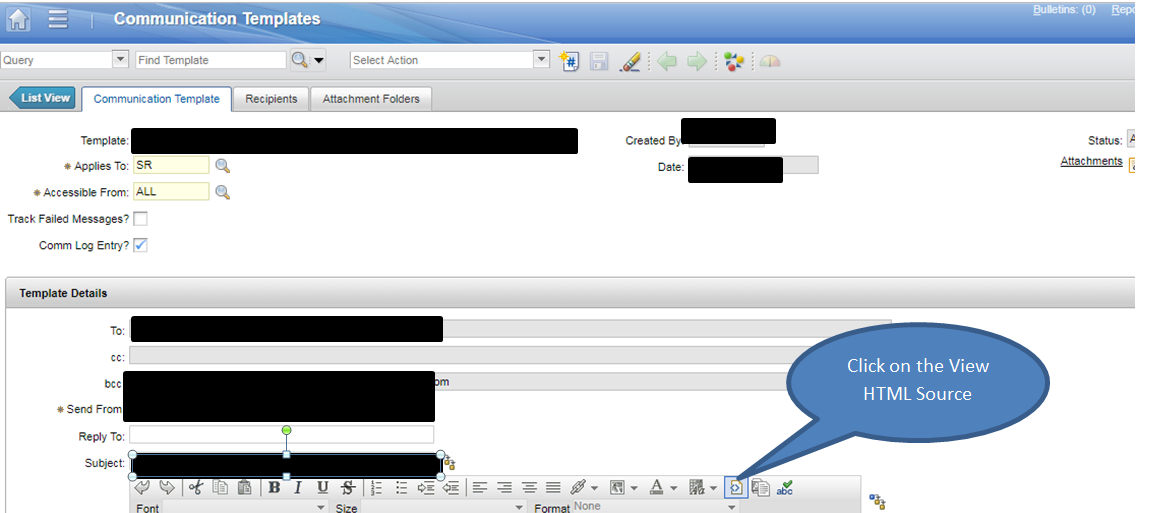
Click on Go To--> System Configuration --> Platform configuration --> Communication Templates.

Then click on the "View HTML Source " icon. As show in the screen shot below.


Enter the following HTML codes in the code snippet field.

Tuesday, 17 April 2018

Importing Item Assembly Structure through Application Import in Item Application


Step 1: Create an Object Structure
Parent : ITEM
Child : ITEMSTRUCT
Relationship : CHILDRENITEMSTRUCT


Step 2: Make sure to change the Alias of ITEMSTRUCT.ITEMID to C_ITEMID and check the support flat file Structure check box.

Wednesday, 11 April 2018

Setting Current Date in XSL for Maximo Integration

During Maximo integration there is need to transform XML from Maximo XML format to External System(eg Oracle) XML format. There we can use the XSL mapping in Maximo. Maximo converts the XML to destination XML format using XSL language and vice versa. During that time, if there is need to set the current date in the XSL format see the below code spinet.

<xsl:stylesheet version="1.0"  
xmlns:xsl="http://www.w3.org/1999/XSL/Transform"  
xmlns:max="http://www.ibm.com/maximo"  
xmlns:java="http://xml.apache.org/xslt/java" exclude-result-prefixes="java">
 <xsl:template match="/">
  <max:SyncRFQSResponse>
   <max:RFQSet>
    <max:RFQ action="AddChange">
      <xsl:for-each select="max:RFQSyncResponse/max:RFQSet/max:RFQ">
       <max:RFQNUM>
         <xsl:value-of select="max:RFQNUM" />
       </max:RFQNUM>
       <max:SITEID>
         <xsl:value-of select="max:SITEID" />
       </max:SITEID>
       <max:TEST_DATE>
         <xsl:value-of select="java:format(java:java.text.SimpleDateFormat.new('yyyy-MM-dd HH:mm:ss'), java:java.util.Date.new())" />
       </max:TEST_DATE>
      </xsl:for-each>
    </max:RFQ>
   </max:RFQSSet>
  </max:SyncRFQResponse>
 </xsl:template>
</xsl:stylesheet>