Showing posts with label Item. Show all posts

Tuesday, 13 August 2019

Populating Condition Codes By Just Clicking Condition Code Check Box in Maximo

Recently we had a requirement to add the condition Code on clicking the Condition Code Check box in Item application.

Below is the Code that was written in JavaScript,
Launch Point Type: Attribute Launch Point
Object: Item
Attribute Name: CONDITIONENABLED

importPackage(Packages.psdi.mbo);

var conditioncode  = mbo.getBoolean("CONDITIONENABLED");
var itemconditionSet = mbo.getMboSet("ITEMCONDITION");

if(conditioncode)
{
  for(i=0;i<3;i++)
  {
    var itemcondition = itemconditionSet.addAtEnd();
    if(i == 0)
    {
      itemcondition.setValue("CONDITIONCODE","A");
    }
    else if(i == 1)
    {
      itemcondition.setValue("CONDITIONCODE","B");
    }
    else if(i == 2)
    {
      itemcondition.setValue("CONDITIONCODE","C");
    }
  }
}


Wednesday, 24 July 2019

Maximo Automation Script setting values while Initializing

There are times where we need to set the value when the object is invoked rather that setting the values during the save method. This can be achieved in Maximo automation scripts.

Step 1: Create an Object Launch Point with JavaScript.
Step 2: Make sure to check the Initialize? check box is checked. And all other check box are unchecked.
Step 3: Below is the sample code for setting the "Inspection Required" and "Adding Spare Parts" check box to always be checked when the item is created.

importPackage(Packages.psdi.mbo);
if(mbo.getString("ITEMSETID")=="ITEMSET1"){
    if(mbo.toBeAdded()==true){
        mbo.setValue("INSPECTIONREQUIRED", 1);
        mbo.setValue("SPAREPARTAUTOADD", 1);
    }
}

Tuesday, 17 April 2018

Importing Item Assembly Structure through Application Import in Item Application


Step 1: Create an Object Structure
Parent : ITEM
Child : ITEMSTRUCT
Relationship : CHILDRENITEMSTRUCT


Step 2: Make sure to change the Alias of ITEMSTRUCT.ITEMID to C_ITEMID and check the support flat file Structure check box.

Monday, 9 April 2018

Planning Service Items in Work Order Plans


This article will provide you an idea about planning service items from Job Plans to Work Orders.

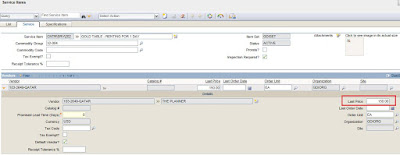
Step 1: Go to Service Item application.

If you have already purchased this service item, then the vendor details and Last Price will be automatically updated in Vendors section based on last Purchase Order.

If you haven’t purchased this service item earlier, then the cost and vendor details will not be available here. You can also enter those details here directly.